
Bring in existing material
Start with documents and spreadsheets. Organise the imported content as reusable library items.
Content planning workspace
Bring the material together.
Prepare the content.
Keep the plan connected.
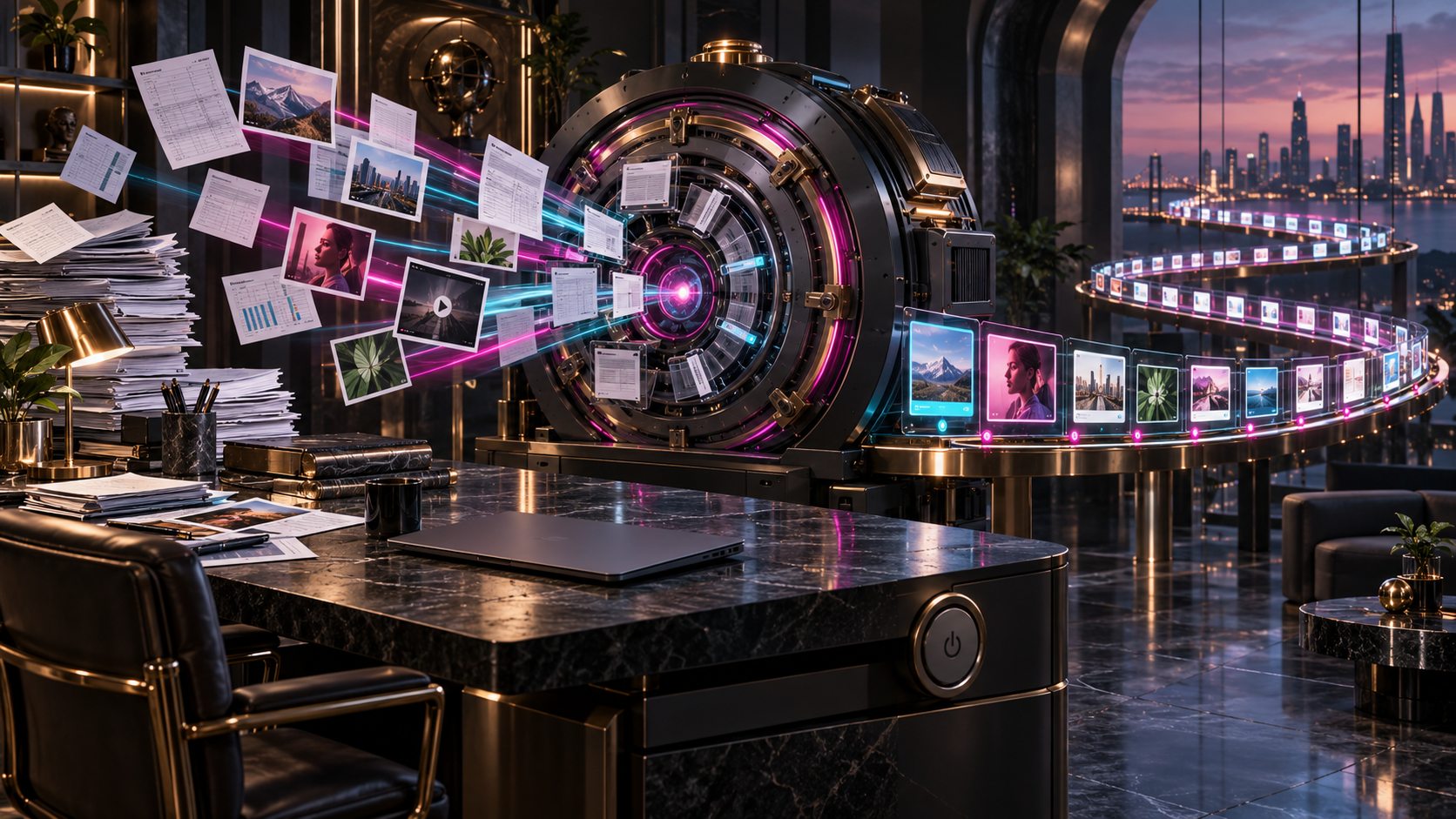
A connected content workflow
Documents, copy, media, decisions and schedules belong together.
Start with documents and spreadsheets. Organise the imported content as reusable library items.
Review previews, edit shared metadata and keep approval states attached to the content.
Connect campaigns, the calendar, reusable schedules, evergreen content and rotating media.

Start with your backlog
The illustration brings documents, spreadsheets, text, images and video into an organised content stream.
Import DOCX, TXT, Markdown, CSV and XLSX, then prepare the library items and their attached media.
Tools for the planning work
A content workspace for sources, copy, review and scheduling.
Bring existing DOCX, TXT and Markdown material into the content workflow instead of retyping each item.
Import CSV and XLSX material alongside your document-based content.
Keep imported ideas, copy and attached media together as reusable library items.
Edit metadata across multiple content items when the same change applies to a group.
Review the content in a readable preview before deciding its next workflow step.
Move items through defined review and approval states, keeping the decision attached to the content.
Group related work into campaigns so the calendar reflects the purpose of the content.
Place content on a scheduling calendar and check for collisions while planning the sequence.
Save reusable schedules and keep evergreen content in the rotation.
Prepare images and video from your own remembered Windows folders and configure media rotation.
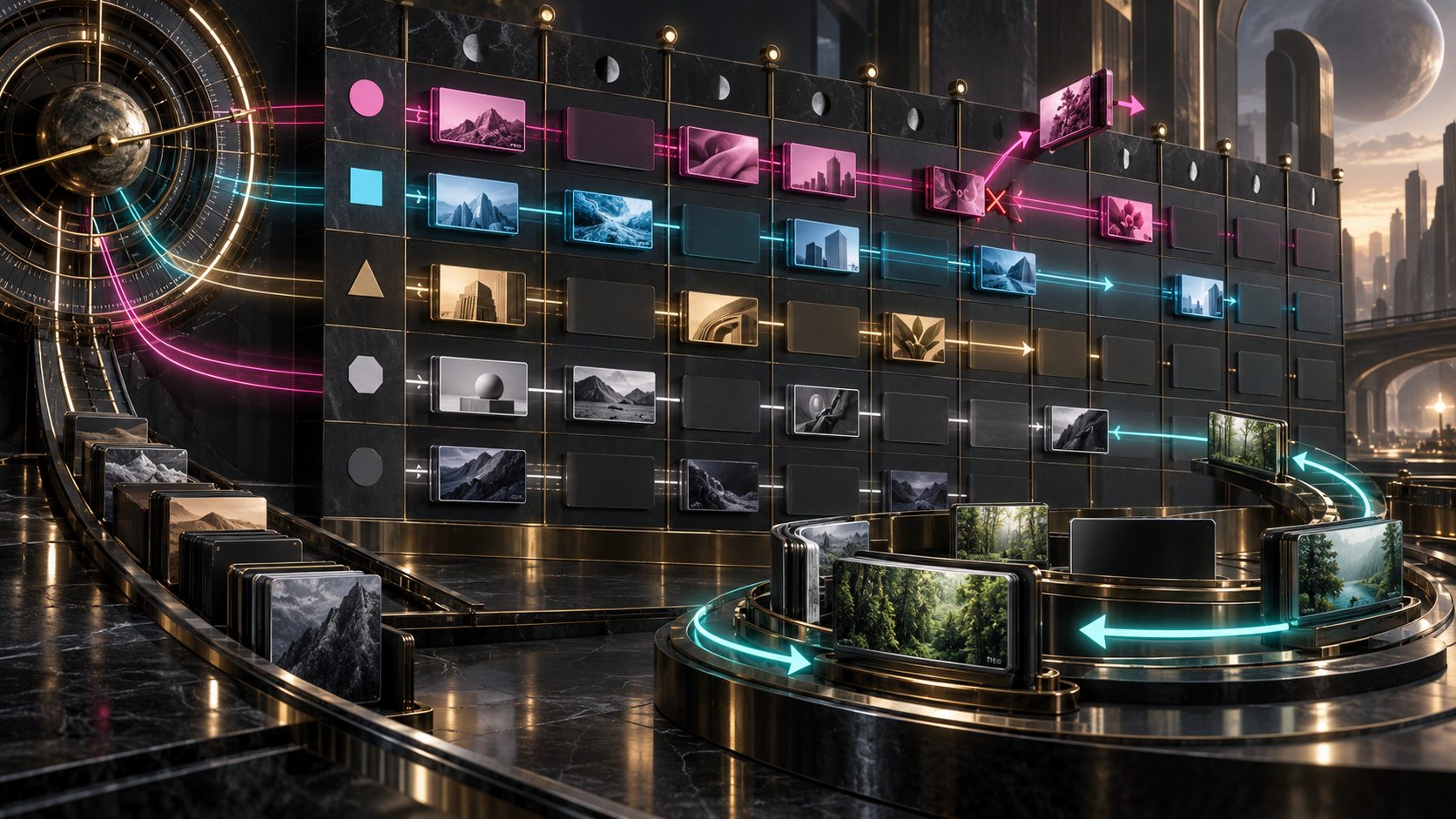
Calendar and rotation
The illustration arranges media across calendar slots and traces separate content sequences.
Group work into campaigns, check calendar collisions and use reusable schedules and evergreen rotation.
A practical preparation loop
Keep the content and its context together as work moves forward.
Bring DOCX, TXT, Markdown, CSV and XLSX into the library.
Edit metadata, group related work into campaigns and attach the relevant media.
Read the previews and move items through the defined review and approval states.
Place content into the calendar, check collisions and configure reusable schedules and media rotation.
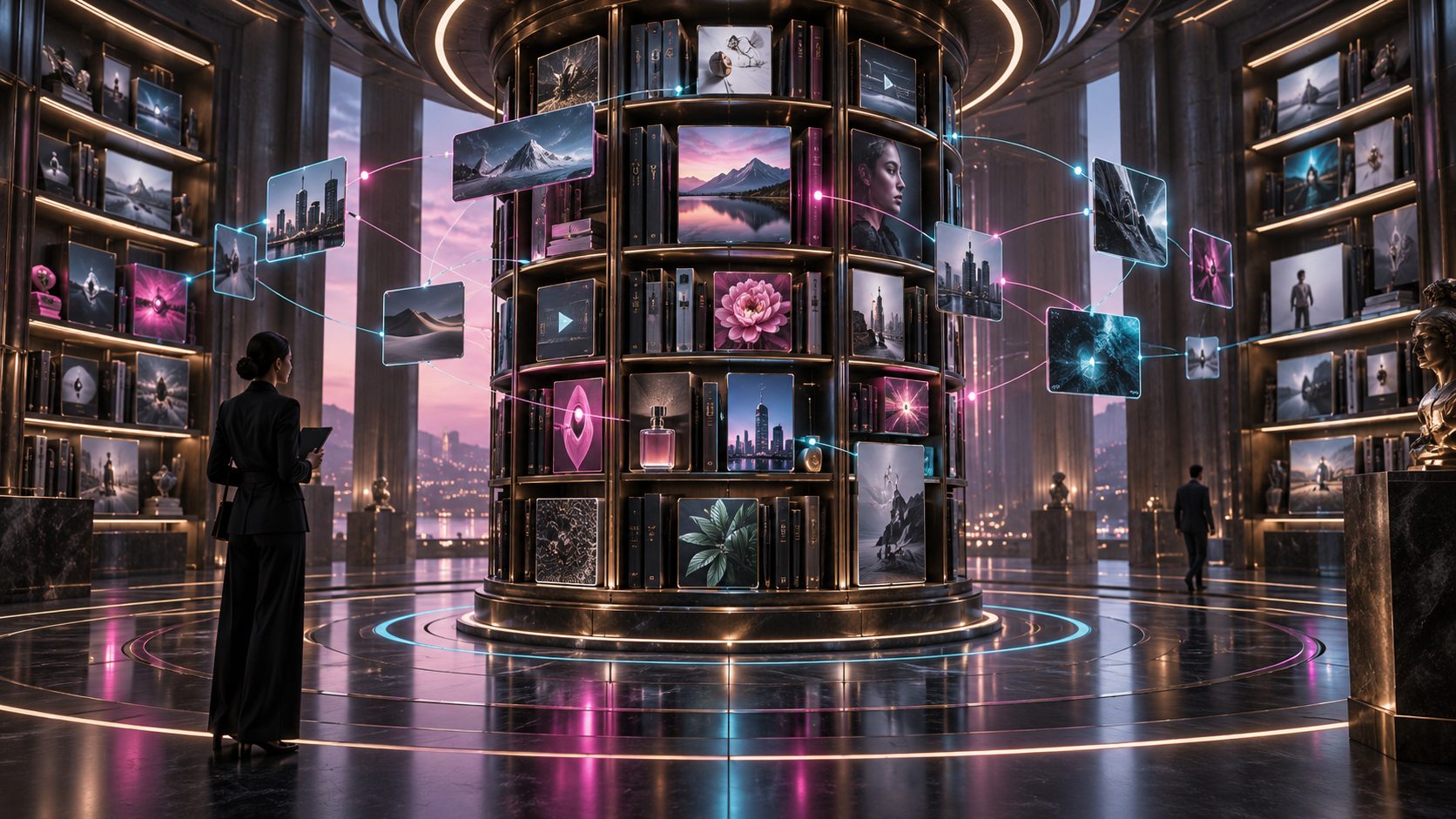
A reusable library
The illustration connects an organised library of copy, images and video to the people preparing the work.
Reuse library content and attached media rather than treating every campaign as a blank starting point.
Content and decisions together
Keep a clear working context for the next content decision.
Documents and spreadsheets provide the starting material for the library.
Copy, metadata and attached media stay together as reusable items.
Readable previews and approval states support the decision about the next step.
Campaigns, calendar slots, reusable schedules and evergreen rotation give the content a continuing place in the plan.
Your workspace and related tools
Open your tools through your VISINVOKE account.
Open Content Planner inside your desktop workspace. Get Desktop Control Centre through your account installer page.
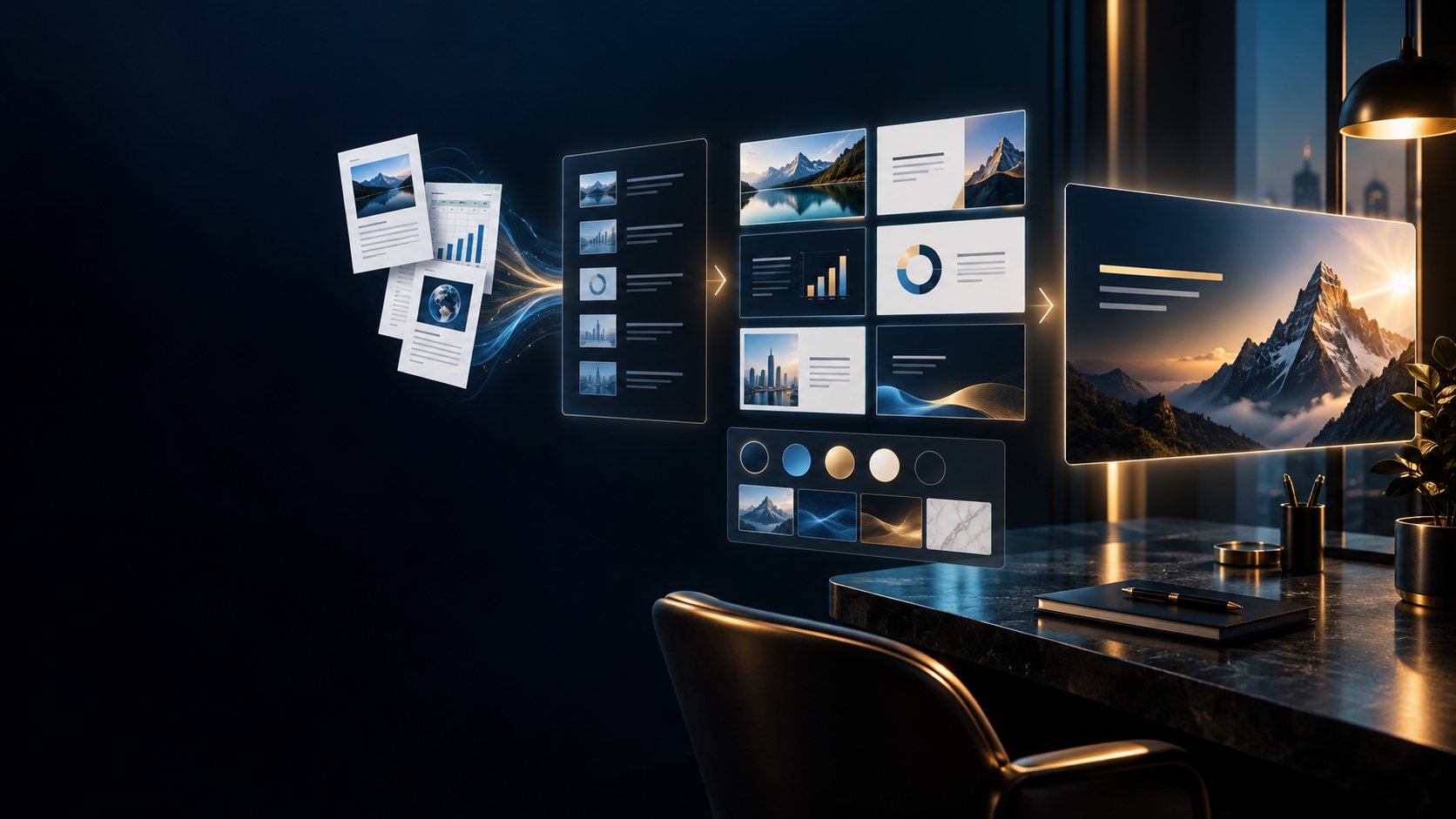
Bring notes or an existing deck into an editable presentation. Refine the slides and export PowerPoint.
Product illustrations show imported material, library organisation, calendar sequences and content preparation. They illustrate the product concepts.
Questions and answers
Understand the import, review, library and calendar workflow.
Content Planner imports DOCX, TXT, Markdown, CSV and XLSX. Bring existing documents and spreadsheets into the reusable content library.
Library items retain content, metadata and attached media for reuse. Bulk editing applies a shared change across multiple items.
Use readable previews and defined review and approval states. Keep the content and the decision together before choosing the next workflow step.
Group work into campaigns, place content on the calendar with collision checking, save reusable schedules and organise evergreen rotation.
Use remembered Windows folders for images and video. Configure rotation rules as part of preparing the media sequence.
Open Content Planner inside Desktop Control Centre. Create or sign in to your VISINVOKE account and get Desktop Control Centre through your account installer page.
Continue in VISINVOKE
Open Content Planner inside Desktop Control Centre.
Create an account or sign in. Get Desktop Control Centre through your account installer page.